
# Signing commits with GPG
> 原文:[https://docs.gitlab.com/ee/user/project/repository/gpg_signed_commits/](https://docs.gitlab.com/ee/user/project/repository/gpg_signed_commits/)
* [How GitLab handles GPG](#how-gitlab-handles-gpg)
* [Generating a GPG key](#generating-a-gpg-key)
* [Adding a GPG key to your account](#adding-a-gpg-key-to-your-account)
* [Associating your GPG key with Git](#associating-your-gpg-key-with-git)
* [Signing commits](#signing-commits)
* [Verifying commits](#verifying-commits)
* [Revoking a GPG key](#revoking-a-gpg-key)
* [Removing a GPG key](#removing-a-gpg-key)
* [Rejecting commits that are not signed](#rejecting-commits-that-are-not-signed-premium)
* [GPG signing API](#gpg-signing-api)
* [Further reading](#further-reading)
# Signing commits with GPG[](#signing-commits-with-gpg "Permalink")
版本歷史
* 在 GitLab 9.5 中[引入](https://gitlab.com/gitlab-org/gitlab-foss/-/merge_requests/9546) .
* 在 GitLab 10.1 中添加了子項支持.
您可以使用 GPG 密鑰對在 GitLab 存儲庫中進行的 Git 提交進行簽名. 如果可以驗證提交者的身份,則已簽名的提交將標記為" **已**驗證". 為了驗證提交者的身份,GitLab 需要他們的公共 GPG 密鑰.
**注意:**術語 GPG 用于所有與 OpenPGP / PGP / GPG 相關的材料和實現.
目前尚不支持通過 GPG 驗證的標簽.
有關 GPG 的更多詳細信息,請參見[進一步閱讀](#further-reading)部分.
## How GitLab handles GPG[](#how-gitlab-handles-gpg "Permalink")
GitLab 使用其自己的密鑰環來驗證 GPG 簽名. 它不訪問任何公鑰服務器.
對于要由 GitLab 驗證的提交:
* 提交者必須具有 GPG 公鑰/私鑰對.
* 提交者的公鑰必須已上傳到其 GitLab 帳戶.
* GPG 密鑰中的一封電子郵件必須與提交者在 GitLab 中使用的**經過驗證的**電子郵件地址匹配.
* 提交者的電子郵件地址必須與 GPG 密鑰中驗證的電子郵件地址匹配.
## Generating a GPG key[](#generating-a-gpg-key "Permalink")
如果您還沒有 GPG 密鑰,則以下步驟將幫助您入門:
1. 為您的操作系統[安裝 GPG](https://www.gnupg.org/download/index.html) . 如果您的操作系統具有`gpg2`安裝,更換`gpg`與`gpg2`在下面的命令.
2. 使用以下命令生成私鑰/公鑰對,這將產生一系列問題:
```
gpg --full-gen-key
```
**注意:**在某些情況下,例如 Windows 和其他 macOS 版本上的 Gpg4win,此處的命令可能是`gpg --gen-key` .
3. 第一個問題是可以使用哪種算法. 選擇所需的類型或按`Enter 鍵`選擇默認類型(RSA 和 RSA):
```
Please select what kind of key you want:
(1) RSA and RSA (default)
(2) DSA and Elgamal
(3) DSA (sign only)
(4) RSA (sign only)
Your selection? 1
```
4. 下一個問題是密鑰長度. 我們建議您選擇`4096` :
```
RSA keys may be between 1024 and 4096 bits long.
What keysize do you want? (2048) 4096
Requested keysize is 4096 bits
```
5. 指定密鑰的有效期. 這是主觀的,您可以使用默認值,該值永遠不會過期:
```
Please specify how long the key should be valid.
0 = key does not expire
<n> = key expires in n days
<n>w = key expires in n weeks
<n>m = key expires in n months
<n>y = key expires in n years
Key is valid for? (0) 0
Key does not expire at all
```
6. 通過輸入`y`確認您給出的答案是正確的:
```
Is this correct? (y/N) y
```
7. 輸入您的真實姓名,與此鍵關聯的電子郵件地址(應與您在 GitLab 中使用的經過驗證的電子郵件地址匹配)和可選注釋(按`Enter`跳過):
```
GnuPG needs to construct a user ID to identify your key.
Real name: Mr. Robot
Email address: <your_email>
Comment:
You selected this USER-ID:
"Mr. Robot <your_email>"
Change (N)ame, (C)omment, (E)mail or (O)kay/(Q)uit? O
```
8. 在詢問時選擇一個強密碼,然后輸入兩次以確認.
9. 使用以下命令列出您剛剛創建的私密 GPG 密鑰:
```
gpg --list-secret-keys --keyid-format LONG <your_email>
```
將`<your_email>`替換為您在上面輸入的電子郵件地址.
10. 復制以`sec`開頭的 GPG 密鑰 ID. 在以下示例中,即`30F2B65B9246B6CA` :
```
sec rsa4096/30F2B65B9246B6CA 2017-08-18 [SC]
D5E4F29F3275DC0CDA8FFC8730F2B65B9246B6CA
uid [ultimate] Mr. Robot <your_email>
ssb rsa4096/B7ABC0813E4028C0 2017-08-18 [E]
```
11. 導出該 ID 的公共密鑰(替換上一步中的密鑰 ID):
```
gpg --armor --export 30F2B65B9246B6CA
```
12. 最后,復制公鑰并將其[添加到您的個人資料設置中](#adding-a-gpg-key-to-your-account)
## Adding a GPG key to your account[](#adding-a-gpg-key-to-your-account "Permalink")
**注意:**添加密鑰后,就無法對其進行編輯,只能將其刪除. 如果粘貼無效,則必須刪除有問題的密鑰并重新添加.
您可以在個人資料的設置中添加 GPG 密鑰:
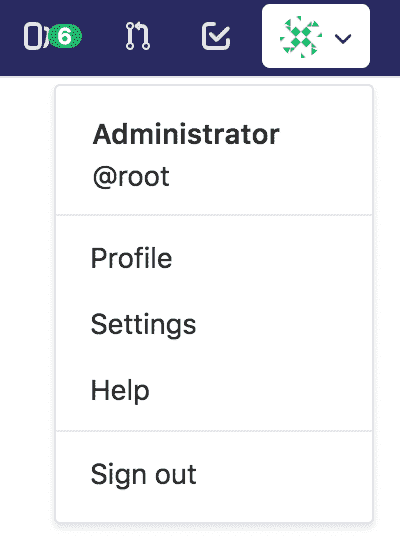
1. 點擊右上角的頭像,然后轉到**"設置"** .
[](../../../profile/img/profile_settings_dropdown.png)
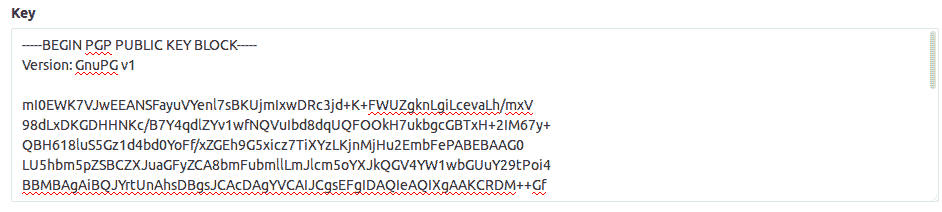
2. 導航至**GPG 密鑰**標簽,然后將您的*公共*密鑰粘貼到"密鑰"框中.
[](img/profile_settings_gpg_keys_paste_pub.png)
3. 最后,單擊**添加鍵**將其添加到 GitLab. 您將能夠看到其指紋,相應的電子郵件地址和創建日期.
[](img/profile_settings_gpg_keys_single_key.png)
## Associating your GPG key with Git[](#associating-your-gpg-key-with-git "Permalink")
[創建 GPG 密鑰](#generating-a-gpg-key)并將其[添加到您的帳戶之后](#adding-a-gpg-key-to-your-account) ,是時候告訴 Git 使用哪個密鑰了.
1. 使用以下命令列出您剛剛創建的私密 GPG 密鑰:
```
gpg --list-secret-keys --keyid-format LONG <your_email>
```
將`<your_email>`替換為您在上面輸入的電子郵件地址.
2. 復制以`sec`開頭的 GPG 密鑰 ID. 在以下示例中,即`30F2B65B9246B6CA` :
```
sec rsa4096/30F2B65B9246B6CA 2017-08-18 [SC]
D5E4F29F3275DC0CDA8FFC8730F2B65B9246B6CA
uid [ultimate] Mr. Robot <your_email>
ssb rsa4096/B7ABC0813E4028C0 2017-08-18 [E]
```
3. 告訴 Git 使用該密鑰對提交進行簽名:
```
git config --global user.signingkey 30F2B65B9246B6CA
```
用您的 GPG 密鑰 ID 替換`30F2B65B9246B6CA` .
4. (可選)如果 Git 使用`gpg`并且出現諸如`secret key not available`或`gpg: signing failed: secret key not available` ,請運行以下命令更改為`gpg2` :
```
git config --global gpg.program gpg2
```
## Signing commits[](#signing-commits "Permalink")
[創建 GPG 密鑰](#generating-a-gpg-key)并將其[添加到您的帳戶之后](#adding-a-gpg-key-to-your-account) ,您可以開始對提交進行簽名:
1. 像以前一樣提交,唯一的區別是添加了`-S`標志:
```
git commit -S -m "My commit msg"
```
2. 詢問時輸入 GPG 密鑰的密碼.
3. 推送至 GitLab 并檢查您的提交[是否已通過驗證](#verifying-commits) .
如果您不想在每次提交時都鍵入`-S`標志,則可以告訴 Git 自動簽名您的提交:
```
git config --global commit.gpgsign true
```
## Verifying commits[](#verifying-commits "Permalink")
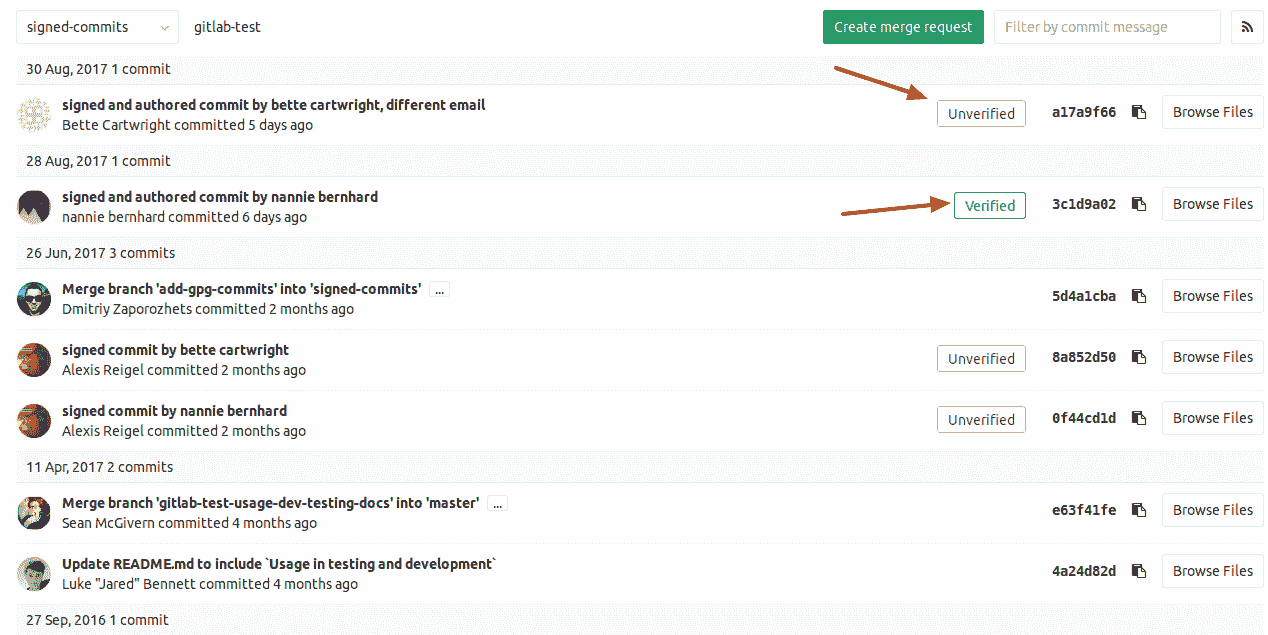
1. 在項目或[合并請求中](../../merge_requests/index.html) ,導航到" **提交"**選項卡. 簽名的提交將顯示包含" Verified"或" Unverified"的徽章,具體取決于 GPG 簽名的驗證狀態.
[](img/project_signed_and_unsigned_commits.png)
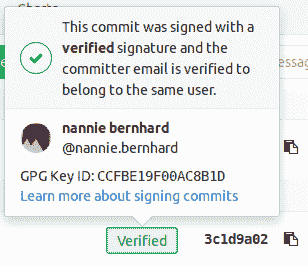
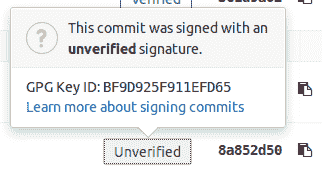
2. 通過單擊 GPG 徽章,將顯示簽名的詳細信息.
[](img/project_signed_commit_verified_signature.png)
[](img/project_signed_commit_unverified_signature.png)
## Revoking a GPG key[](#revoking-a-gpg-key "Permalink")
撤消密鑰將**取消驗證**已簽名的提交. 使用此密鑰驗證的提交將變為未驗證狀態. 撤銷此密鑰后,將來的提交也將保持不變. 如果您的密鑰已被盜用,則應使用此操作.
撤銷 GPG 密鑰:
1. 點擊右上角的頭像,然后轉到**"設置"** .
2. 導航到**GPG 鍵**標簽.
3. 單擊您要刪除的 GPG 鍵**旁邊的撤消** .
## Removing a GPG key[](#removing-a-gpg-key "Permalink")
刪除密鑰**不會**取消**驗證**已簽名的提交. 使用此密鑰驗證的提交將保持驗證狀態. 刪除此密鑰后,只有未按下的提交才會保持未驗證狀態. 要取消驗證已簽名的提交,您需要從您的帳戶中[撤銷關聯的 GPG 密鑰](#revoking-a-gpg-key) .
要從您的帳戶中刪除 GPG 密鑰,請執行以下操作:
1. 點擊右上角的頭像,然后轉到**"設置"** .
2. 導航到**GPG 鍵**標簽.
3. 單擊您要刪除的 GPG 密鑰旁邊的垃圾桶圖標.
## Rejecting commits that are not signed[](#rejecting-commits-that-are-not-signed-premium "Permalink")
您可以將您的項目配置為拒絕不是通過[推送規則進行](../../../../push_rules/push_rules.html) GPG 簽名的提交.
## GPG signing API[](#gpg-signing-api "Permalink")
了解如何[通過 API 通過提交獲取 GPG 簽名](../../../../api/commits.html#get-gpg-signature-of-a-commit) .
## Further reading[](#further-reading "Permalink")
有關 GPG 的更多詳細信息,請參見:
* [Git Tools - Signing Your Work](https://git-scm.com/book/en/v2/Git-Tools-Signing-Your-Work)
* [Managing OpenPGP Keys](https://riseup.net/en/security/message-security/openpgp/gpg-keys)
* [OpenPGP Best Practices](https://riseup.net/en/security/message-security/openpgp/best-practices)
* [Creating a new GPG key with subkeys](https://www.void.gr/kargig/blog/2013/12/02/creating-a-new-gpg-key-with-subkeys/) (advanced)
- GitLab Docs
- Installation
- Requirements
- GitLab cloud native Helm Chart
- Install GitLab with Docker
- Installation from source
- Install GitLab on Microsoft Azure
- Installing GitLab on Google Cloud Platform
- Installing GitLab on Amazon Web Services (AWS)
- Analytics
- Code Review Analytics
- Productivity Analytics
- Value Stream Analytics
- Kubernetes clusters
- Adding and removing Kubernetes clusters
- Adding EKS clusters
- Adding GKE clusters
- Group-level Kubernetes clusters
- Instance-level Kubernetes clusters
- Canary Deployments
- Cluster Environments
- Deploy Boards
- GitLab Managed Apps
- Crossplane configuration
- Cluster management project (alpha)
- Kubernetes Logs
- Runbooks
- Serverless
- Deploying AWS Lambda function using GitLab CI/CD
- Securing your deployed applications
- Groups
- Contribution Analytics
- Custom group-level project templates
- Epics
- Manage epics
- Group Import/Export
- Insights
- Issues Analytics
- Iterations
- Public access
- SAML SSO for GitLab.com groups
- SCIM provisioning using SAML SSO for GitLab.com groups
- Subgroups
- Roadmap
- Projects
- GitLab Secure
- Security Configuration
- Container Scanning
- Dependency Scanning
- Dependency List
- Static Application Security Testing (SAST)
- Secret Detection
- Dynamic Application Security Testing (DAST)
- GitLab Security Dashboard
- Offline environments
- Standalone Vulnerability pages
- Security scanner integration
- Badges
- Bulk editing issues and merge requests at the project level
- Code Owners
- Compliance
- License Compliance
- Compliance Dashboard
- Create a project
- Description templates
- Deploy Keys
- Deploy Tokens
- File finder
- Project integrations
- Integrations
- Atlassian Bamboo CI Service
- Bugzilla Service
- Custom Issue Tracker service
- Discord Notifications service
- Enabling emails on push
- GitHub project integration
- Hangouts Chat service
- Atlassian HipChat
- Irker IRC Gateway
- GitLab Jira integration
- Mattermost Notifications Service
- Mattermost slash commands
- Microsoft Teams service
- Mock CI Service
- Prometheus integration
- Redmine Service
- Slack Notifications Service
- Slack slash commands
- GitLab Slack application
- Webhooks
- YouTrack Service
- Insights
- Issues
- Crosslinking Issues
- Design Management
- Confidential issues
- Due dates
- Issue Boards
- Issue Data and Actions
- Labels
- Managing issues
- Milestones
- Multiple Assignees for Issues
- Related issues
- Service Desk
- Sorting and ordering issue lists
- Issue weight
- Associate a Zoom meeting with an issue
- Merge requests
- Allow collaboration on merge requests across forks
- Merge Request Approvals
- Browser Performance Testing
- How to create a merge request
- Cherry-pick changes
- Code Quality
- Load Performance Testing
- Merge Request dependencies
- Fast-forward merge requests
- Merge when pipeline succeeds
- Merge request conflict resolution
- Reverting changes
- Reviewing and managing merge requests
- Squash and merge
- Merge requests versions
- Draft merge requests
- Members of a project
- Migrating projects to a GitLab instance
- Import your project from Bitbucket Cloud to GitLab
- Import your project from Bitbucket Server to GitLab
- Migrating from ClearCase
- Migrating from CVS
- Import your project from FogBugz to GitLab
- Gemnasium
- Import your project from GitHub to GitLab
- Project importing from GitLab.com to your private GitLab instance
- Import your project from Gitea to GitLab
- Import your Jira project issues to GitLab
- Migrating from Perforce Helix
- Import Phabricator tasks into a GitLab project
- Import multiple repositories by uploading a manifest file
- Import project from repo by URL
- Migrating from SVN to GitLab
- Migrating from TFVC to Git
- Push Options
- Releases
- Repository
- Branches
- Git Attributes
- File Locking
- Git file blame
- Git file history
- Repository mirroring
- Protected branches
- Protected tags
- Push Rules
- Reduce repository size
- Signing commits with GPG
- Syntax Highlighting
- GitLab Web Editor
- Web IDE
- Requirements Management
- Project settings
- Project import/export
- Project access tokens (Alpha)
- Share Projects with other Groups
- Snippets
- Static Site Editor
- Wiki
- Project operations
- Monitor metrics for your CI/CD environment
- Set up alerts for Prometheus metrics
- Embedding metric charts within GitLab-flavored Markdown
- Embedding Grafana charts
- Using the Metrics Dashboard
- Dashboard YAML properties
- Metrics dashboard settings
- Panel types for dashboards
- Using Variables
- Templating variables for metrics dashboards
- Prometheus Metrics library
- Monitoring AWS Resources
- Monitoring HAProxy
- Monitoring Kubernetes
- Monitoring NGINX
- Monitoring NGINX Ingress Controller
- Monitoring NGINX Ingress Controller with VTS metrics
- Alert Management
- Error Tracking
- Tracing
- Incident Management
- GitLab Status Page
- Feature Flags
- GitLab CI/CD
- GitLab CI/CD pipeline configuration reference
- GitLab CI/CD include examples
- Introduction to CI/CD with GitLab
- Getting started with GitLab CI/CD
- How to enable or disable GitLab CI/CD
- Using SSH keys with GitLab CI/CD
- Migrating from CircleCI
- Migrating from Jenkins
- Auto DevOps
- Getting started with Auto DevOps
- Requirements for Auto DevOps
- Customizing Auto DevOps
- Stages of Auto DevOps
- Upgrading PostgreSQL for Auto DevOps
- Cache dependencies in GitLab CI/CD
- GitLab ChatOps
- Cloud deployment
- Docker integration
- Building Docker images with GitLab CI/CD
- Using Docker images
- Building images with kaniko and GitLab CI/CD
- GitLab CI/CD environment variables
- Predefined environment variables reference
- Where variables can be used
- Deprecated GitLab CI/CD variables
- Environments and deployments
- Protected Environments
- GitLab CI/CD Examples
- Test a Clojure application with GitLab CI/CD
- Using Dpl as deployment tool
- Testing a Phoenix application with GitLab CI/CD
- End-to-end testing with GitLab CI/CD and WebdriverIO
- DevOps and Game Dev with GitLab CI/CD
- Deploy a Spring Boot application to Cloud Foundry with GitLab CI/CD
- How to deploy Maven projects to Artifactory with GitLab CI/CD
- Testing PHP projects
- Running Composer and NPM scripts with deployment via SCP in GitLab CI/CD
- Test and deploy Laravel applications with GitLab CI/CD and Envoy
- Test and deploy a Python application with GitLab CI/CD
- Test and deploy a Ruby application with GitLab CI/CD
- Test and deploy a Scala application to Heroku
- GitLab CI/CD for external repositories
- Using GitLab CI/CD with a Bitbucket Cloud repository
- Using GitLab CI/CD with a GitHub repository
- GitLab Pages
- GitLab Pages
- GitLab Pages domain names, URLs, and baseurls
- Create a GitLab Pages website from scratch
- Custom domains and SSL/TLS Certificates
- GitLab Pages integration with Let's Encrypt
- GitLab Pages Access Control
- Exploring GitLab Pages
- Incremental Rollouts with GitLab CI/CD
- Interactive Web Terminals
- Optimizing GitLab for large repositories
- Metrics Reports
- CI/CD pipelines
- Pipeline Architecture
- Directed Acyclic Graph
- Multi-project pipelines
- Parent-child pipelines
- Pipelines for Merge Requests
- Pipelines for Merged Results
- Merge Trains
- Job artifacts
- Pipeline schedules
- Pipeline settings
- Triggering pipelines through the API
- Review Apps
- Configuring GitLab Runners
- GitLab CI services examples
- Using MySQL
- Using PostgreSQL
- Using Redis
- Troubleshooting CI/CD
- GitLab Package Registry
- GitLab Container Registry
- Dependency Proxy
- GitLab Composer Repository
- GitLab Conan Repository
- GitLab Maven Repository
- GitLab NPM Registry
- GitLab NuGet Repository
- GitLab PyPi Repository
- API Docs
- API resources
- .gitignore API
- GitLab CI YMLs API
- Group and project access requests API
- Appearance API
- Applications API
- Audit Events API
- Avatar API
- Award Emoji API
- Project badges API
- Group badges API
- Branches API
- Broadcast Messages API
- Project clusters API
- Group clusters API
- Instance clusters API
- Commits API
- Container Registry API
- Custom Attributes API
- Dashboard annotations API
- Dependencies API
- Deploy Keys API
- Deployments API
- Discussions API
- Dockerfiles API
- Environments API
- Epics API
- Events
- Feature Flags API
- Feature flag user lists API
- Freeze Periods API
- Geo Nodes API
- Group Activity Analytics API
- Groups API
- Import API
- Issue Boards API
- Group Issue Boards API
- Issues API
- Epic Issues API
- Issues Statistics API
- Jobs API
- Keys API
- Labels API
- Group Labels API
- License
- Licenses API
- Issue links API
- Epic Links API
- Managed Licenses API
- Markdown API
- Group and project members API
- Merge request approvals API
- Merge requests API
- Project milestones API
- Group milestones API
- Namespaces API
- Notes API
- Notification settings API
- Packages API
- Pages domains API
- Pipeline schedules API
- Pipeline triggers API
- Pipelines API
- Project Aliases API
- Project import/export API
- Project repository storage moves API
- Project statistics API
- Project templates API
- Projects API
- Protected branches API
- Protected tags API
- Releases API
- Release links API
- Repositories API
- Repository files API
- Repository submodules API
- Resource label events API
- Resource milestone events API
- Resource weight events API
- Runners API
- SCIM API
- Search API
- Services API
- Application settings API
- Sidekiq Metrics API
- Snippets API
- Project snippets
- Application statistics API
- Suggest Changes API
- System hooks API
- Tags API
- Todos API
- Users API
- Project-level Variables API
- Group-level Variables API
- Version API
- Vulnerabilities API
- Vulnerability Findings API
- Wikis API
- GraphQL API
- Getting started with GitLab GraphQL API
- GraphQL API Resources
- API V3 to API V4
- Validate the .gitlab-ci.yml (API)
- User Docs
- Abuse reports
- User account
- Active sessions
- Deleting a User account
- Permissions
- Personal access tokens
- Profile preferences
- Threads
- GitLab and SSH keys
- GitLab integrations
- Git
- GitLab.com settings
- Infrastructure as code with Terraform and GitLab
- GitLab keyboard shortcuts
- GitLab Markdown
- AsciiDoc
- GitLab Notification Emails
- GitLab Quick Actions
- Autocomplete characters
- Reserved project and group names
- Search through GitLab
- Advanced Global Search
- Advanced Syntax Search
- Time Tracking
- GitLab To-Do List
- Administrator Docs
- Reference architectures
- Reference architecture: up to 1,000 users
- Reference architecture: up to 2,000 users
- Reference architecture: up to 3,000 users
- Reference architecture: up to 5,000 users
- Reference architecture: up to 10,000 users
- Reference architecture: up to 25,000 users
- Reference architecture: up to 50,000 users
- Troubleshooting a reference architecture set up
- Working with the bundled Consul service
- Configuring PostgreSQL for scaling
- Configuring GitLab application (Rails)
- Load Balancer for multi-node GitLab
- Configuring a Monitoring node for Scaling and High Availability
- NFS
- Working with the bundled PgBouncer service
- Configuring Redis for scaling
- Configuring Sidekiq
- Admin Area settings
- Continuous Integration and Deployment Admin settings
- Custom instance-level project templates
- Diff limits administration
- Enable and disable GitLab features deployed behind feature flags
- Geo nodes Admin Area
- GitLab Pages administration
- Health Check
- Job logs
- Labels administration
- Log system
- PlantUML & GitLab
- Repository checks
- Repository storage paths
- Repository storage types
- Account and limit settings
- Service templates
- System hooks
- Changing your time zone
- Uploads administration
- Abuse reports
- Activating and deactivating users
- Audit Events
- Blocking and unblocking users
- Broadcast Messages
- Elasticsearch integration
- Gitaly
- Gitaly Cluster
- Gitaly reference
- Monitoring GitLab
- Monitoring GitLab with Prometheus
- Performance Bar
- Usage statistics
- Object Storage
- Performing Operations in GitLab
- Cleaning up stale Redis sessions
- Fast lookup of authorized SSH keys in the database
- Filesystem Performance Benchmarking
- Moving repositories managed by GitLab
- Run multiple Sidekiq processes
- Sidekiq MemoryKiller
- Switching to Puma
- Understanding Unicorn and unicorn-worker-killer
- User lookup via OpenSSH's AuthorizedPrincipalsCommand
- GitLab Package Registry administration
- GitLab Container Registry administration
- Replication (Geo)
- Geo database replication
- Geo with external PostgreSQL instances
- Geo configuration
- Using a Geo Server
- Updating the Geo nodes
- Geo with Object storage
- Docker Registry for a secondary node
- Geo for multiple nodes
- Geo security review (Q&A)
- Location-aware Git remote URL with AWS Route53
- Tuning Geo
- Removing secondary Geo nodes
- Geo data types support
- Geo Frequently Asked Questions
- Geo Troubleshooting
- Geo validation tests
- Disaster Recovery (Geo)
- Disaster recovery for planned failover
- Bring a demoted primary node back online
- Automatic background verification
- Rake tasks
- Back up and restore GitLab
- Clean up
- Namespaces
- Maintenance Rake tasks
- Geo Rake Tasks
- GitHub import
- Import bare repositories
- Integrity check Rake task
- LDAP Rake tasks
- Listing repository directories
- Praefect Rake tasks
- Project import/export administration
- Repository storage Rake tasks
- Generate sample Prometheus data
- Uploads migrate Rake tasks
- Uploads sanitize Rake tasks
- User management
- Webhooks administration
- X.509 signatures
- Server hooks
- Static objects external storage
- Updating GitLab
- GitLab release and maintenance policy
- Security
- Password Storage
- Custom password length limits
- Restrict allowed SSH key technologies and minimum length
- Rate limits
- Webhooks and insecure internal web services
- Information exclusivity
- How to reset your root password
- How to unlock a locked user from the command line
- User File Uploads
- How we manage the TLS protocol CRIME vulnerability
- User email confirmation at sign-up
- Security of running jobs
- Proxying assets
- CI/CD Environment Variables
- Contributor and Development Docs
- Contribute to GitLab
- Community members & roles
- Implement design & UI elements
- Issues workflow
- Merge requests workflow
- Code Review Guidelines
- Style guides
- GitLab Architecture Overview
- CI/CD development documentation
- Database guides
- Database Review Guidelines
- Database Review Guidelines
- Migration Style Guide
- What requires downtime?
- Understanding EXPLAIN plans
- Rake tasks for developers
- Mass inserting Rails models
- GitLab Documentation guidelines
- Documentation Style Guide
- Documentation structure and template
- Documentation process
- Documentation site architecture
- Global navigation
- GitLab Docs monthly release process
- Telemetry Guide
- Usage Ping Guide
- Snowplow Guide
- Experiment Guide
- Feature flags in development of GitLab
- Feature flags process
- Developing with feature flags
- Feature flag controls
- Document features deployed behind feature flags
- Frontend Development Guidelines
- Accessibility & Readability
- Ajax
- Architecture
- Axios
- Design Patterns
- Frontend Development Process
- DropLab
- Emojis
- Filter
- Frontend FAQ
- GraphQL
- Icons and SVG Illustrations
- InputSetter
- Performance
- Principles
- Security
- Tooling
- Vuex
- Vue
- Geo (development)
- Geo self-service framework (alpha)
- Gitaly developers guide
- GitLab development style guides
- API style guide
- Go standards and style guidelines
- GraphQL API style guide
- Guidelines for shell commands in the GitLab codebase
- HTML style guide
- JavaScript style guide
- Migration Style Guide
- Newlines style guide
- Python Development Guidelines
- SCSS style guide
- Shell scripting standards and style guidelines
- Sidekiq debugging
- Sidekiq Style Guide
- SQL Query Guidelines
- Vue.js style guide
- Instrumenting Ruby code
- Testing standards and style guidelines
- Flaky tests
- Frontend testing standards and style guidelines
- GitLab tests in the Continuous Integration (CI) context
- Review Apps
- Smoke Tests
- Testing best practices
- Testing levels
- Testing Rails migrations at GitLab
- Testing Rake tasks
- End-to-end Testing
- Beginner's guide to writing end-to-end tests
- End-to-end testing Best Practices
- Dynamic Element Validation
- Flows in GitLab QA
- Page objects in GitLab QA
- Resource class in GitLab QA
- Style guide for writing end-to-end tests
- Testing with feature flags
- Translate GitLab to your language
- Internationalization for GitLab
- Translating GitLab
- Proofread Translations
- Merging translations from CrowdIn
- Value Stream Analytics development guide
- GitLab subscription
- Activate GitLab EE with a license